For Mac · Works with the Music app (formerly iTunes)

Tidy years of music without risking any of it.

Tidy My Music fixes names, fills in missing cover art, sorts out duplicates and repairs blank tags in your Mac's music library. It shows you every change before it makes it, can undo any of them, and never sends your library anywhere.

COMING SOON FOR MAC How it keeps your music safe

£19.99, once · Free preview · macOS 13 Ventura or later

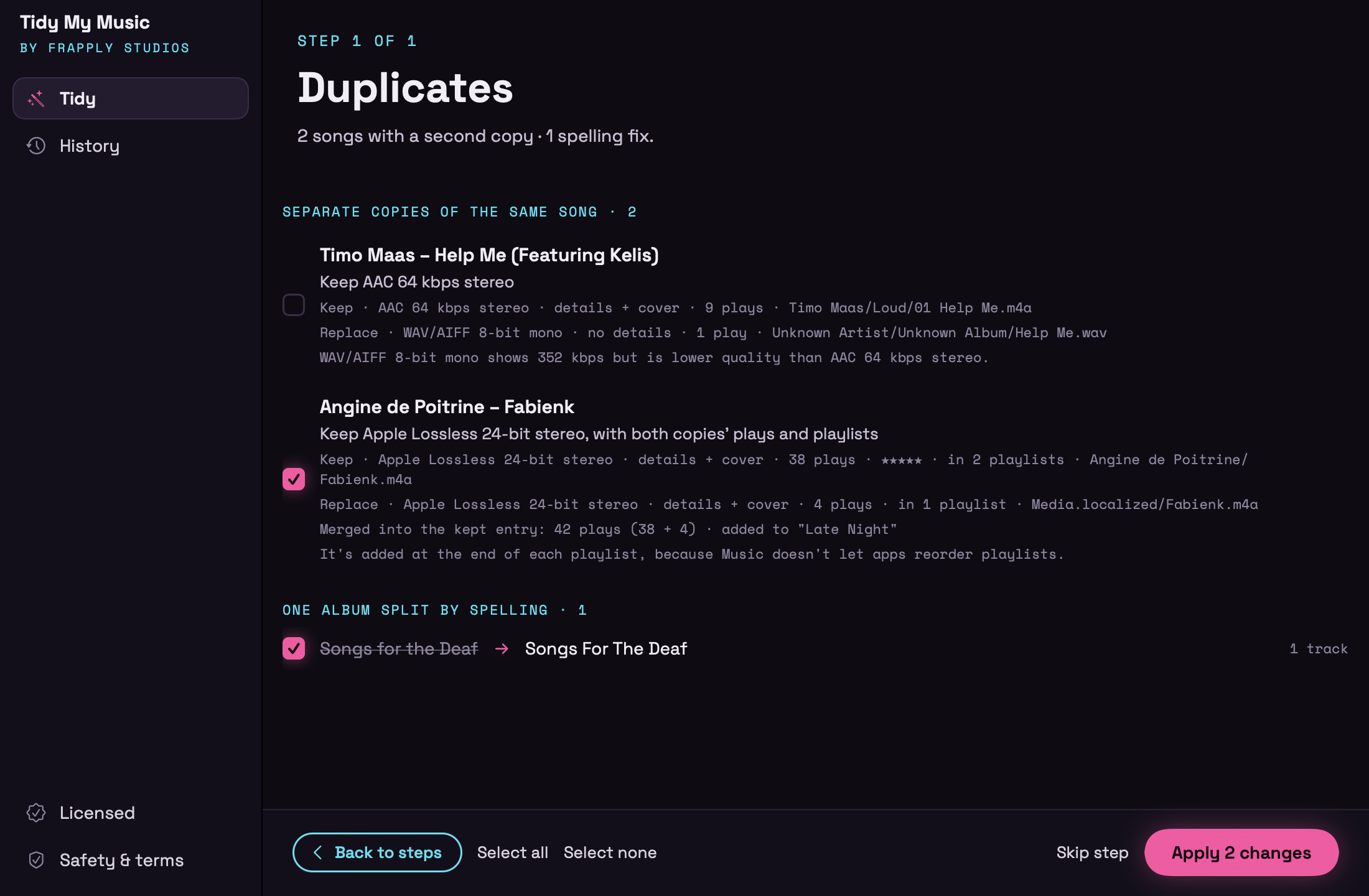
Tidy My Music showing duplicate songs, with the better copy marked Keep and every change ticked or unticked before anything happens

What it fixes

Five fixes for a messy library

  1. 01

    Tag repair

    Fills in blank albums, artists, years and genres from the rest of the album.

  2. 02

    Capitalisation

    "nine inch nails" becomes "Nine Inch Nails", the way album sleeves do it.

  3. 03

    Cover art

    Adds missing covers, with one-click image searches for the rest.

  4. 04

    Duplicates

    One copy left: the best-sounding file, with every play, rating and playlist.

  5. 05

    DRM owner scan

    Shows which Apple ID bought each old protected song.

See how each step works →

Safety first

Your library is years of collecting. It's treated that way.

CDs you ripped, albums you bought, playlists you've built over decades, maybe synced to an iPod you still use, so it's fair to be wary of letting an app near that. So Tidy My Music was built around one rule: it must never make your library worse. It never deletes a song file. The worst it does is move a duplicate into a folder it shows you, and every change it makes can be put back.

Built in

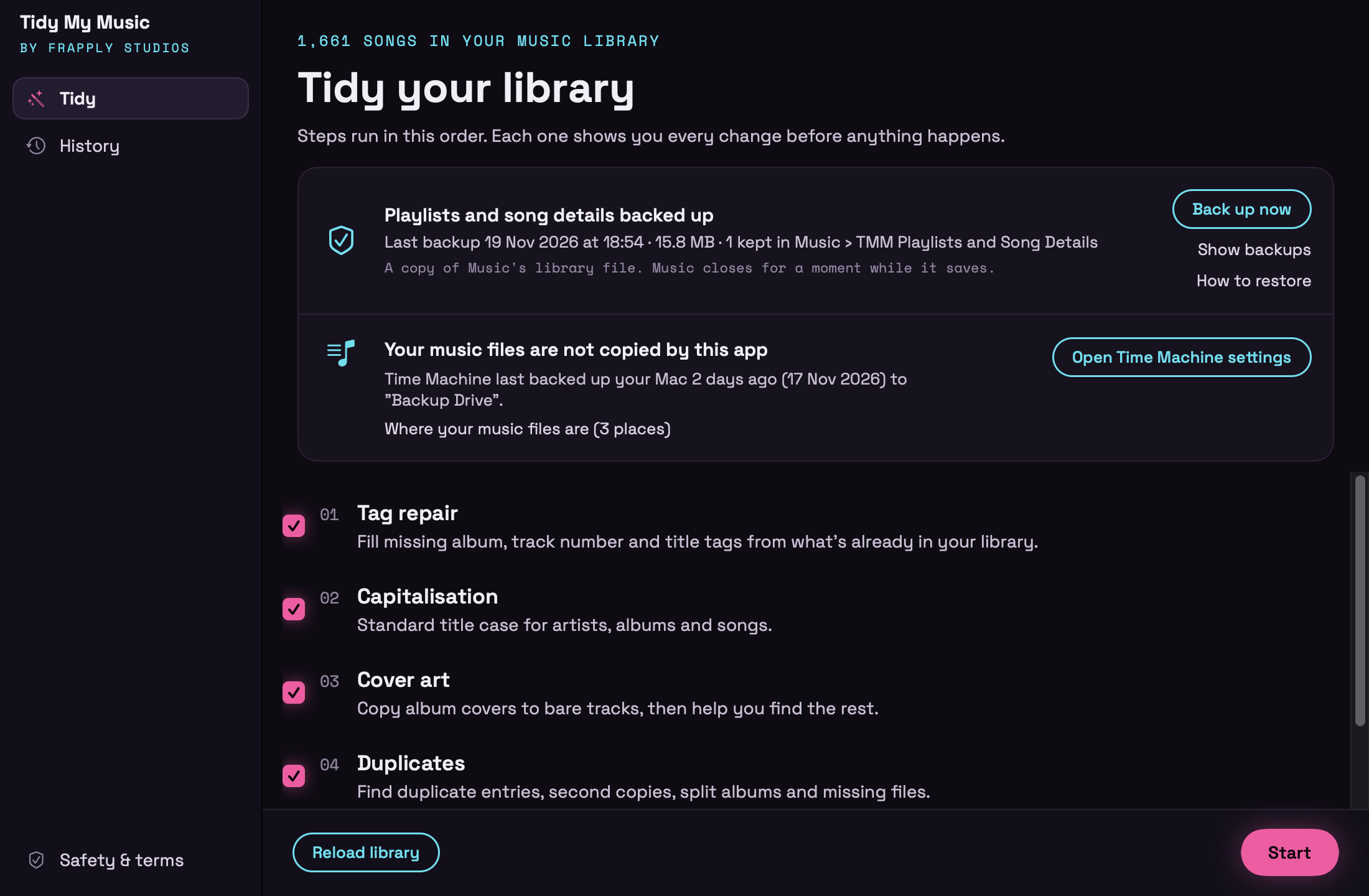
It backs up your playlists and song details before you start

One click saves a copy of the file where Music keeps everything about your collection, and the app reminds you if you haven't done it today. Restoring takes three steps in Music.

Included: your playlists, play counts, ratings, and every song's name, artist, album and other details.
Not included: the music files themselves. They aren't copied, and they don't need to be for anything this app does, but only a full backup protects them from everything else (see below).

You approve every change

Each step lists exactly what it would change, row by row: the old name and the new one, the cover it would add, which copy of a song it would keep and why. Nothing is written until you tick it and press Apply. Anything it isn't sure about arrives unticked.

Every change can be put back

Before anything is written, the change is recorded. History lists every run by date and time. Open one, tick the changes you want to reverse, and they go back, while the ones you're happy with stay. It doesn't expire: quit the app, restart your Mac, sync your iPhone, come back a week later, and your history is still there.

It never deletes your music

When it tidies up a duplicate, the copy it replaces is moved to a folder in your Music folder, not the Trash and never erased. You can open it, check it and bring it back. Your songs stay on your disk.

It works through Apple's Music app

It doesn't reach into Music's library database behind its back. Every change is made by the Music app itself, the same way as when you edit a song's details by hand, so your library and your files stay in step.

Careful by design

Tag repair only fills in tags that are blank, never overwrites ones you've filled. Cover art only goes on songs that have none. If you've changed something since it looked, your change is left alone. And it never removes or alters the copy protection on old purchases.

The best copy, with all its history

With duplicates it keeps the copy that actually sounds best, judged by the audio itself, not the bitrate figure. And nothing you've built up is lost with the other copy: its plays are added on, the higher star rating is kept, and the song stays in every playlist either copy was in.

What it can't do, said plainly. Music doesn't let apps rearrange a playlist, so when a song joins a playlist because its duplicate was there, it goes at the end rather than in the duplicate's old spot. The same goes for undo: a removed entry comes back with its plays, rating and playlists, but at the end of each playlist. And an entry whose file was already missing can't be brought back, because there's no file to add. Undo has no time limit, but keep Music › TMM Replaced Files until you're happy: if you delete those files, a merged duplicate can't be split back. The app tells you about all of this before you tick anything. The terms of use set out what the app does and doesn't do.

Why a song can be "missing" before the app even opens

Apple's Music app doesn't hold your songs inside itself. Its library is a list of entries, and each entry points to a music file somewhere on your Mac or on a drive. If that file is moved, renamed or deleted outside Music, or it's on a drive that isn't plugged in, the entry stays in the list but now points at nothing. Music shows it with an exclamation mark when you try to play it. This can happen years before you ever run Tidy My Music.

When the app opens, it checks every entry against the disk and tells you which ones have lost their file. It can tidy those entries away, but it can't bring back a file that was already gone, because there's nothing left to bring back. That's why undo can't restore them either.

Tip: plug in any drive your music lives on before you open the app, so those songs aren't counted as missing.

Before you start

Back up first. We'd say this about any app that touches your library.

Undo covers what Tidy My Music does, and the app saves a copy of your playlists and song details before you start. Your music files themselves are protected only by a full backup, which also covers a failing disk, a stolen laptop or a mistake made anywhere. If you don't have one yet, now's the moment.

  1. Easiest: plug in an external drive and turn on Time Machine (System Settings > General > Time Machine). Let it finish one backup.
  2. Or by hand: quit Music, then copy your Music folder, ~/Music, to an external drive. It holds your library file (Music Library.musiclibrary) and, usually, your songs.
  3. If your songs live somewhere else, such as an external drive, copy that folder too. In Music, Settings > Files shows where they are.

How it works

Five steps, one run, every change shown first

Tick the steps you want and press Start. Each step checks your library, shows what it found, and waits for you. Skip any step, or go back to one.

01

Tag repair

Fills in blank album, album artist, year and genre tags using the rest of the album, only when the other tracks clearly agree. Untidy folders and lone clues are listed for you, never guessed at.

02

Capitalisation

"nine inch nails" becomes "Nine Inch Nails" and "a prayer for england" becomes "A Prayer for England", with small words left lowercase the way album sleeves do it. Deliberate styling, like "AC/DC", is left alone.

03

Cover art

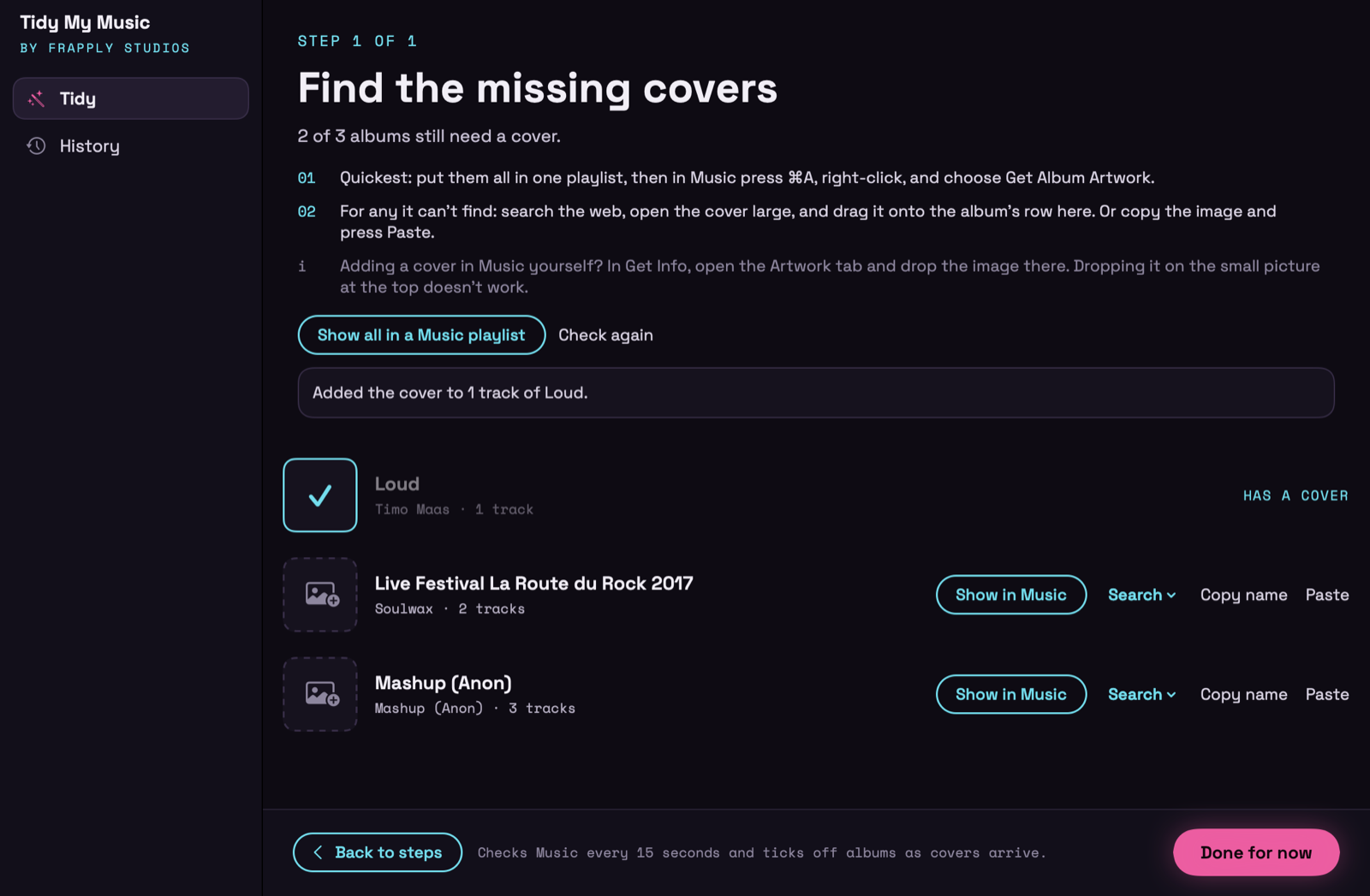
Copies an album's own cover to the tracks that are missing it. For albums with no cover at all, it puts them in one playlist so Music's Get Album Artwork can fetch them in one go, and for any that are left it gives you one-click searches on Google Images, Bing Images, DuckDuckGo or Discogs. Drag the cover you like onto the album, or copy it and press Paste.

04

Duplicates

Finds songs you have twice and merges them into one: the best-sounding file, with every play, the higher star rating, all the playlists either copy was in, and any cover or details the other copy had. The copy it replaces is moved to a folder, not deleted. It spots the same song even when one copy says "feat." and the other "featuring", or the album is written "Artist - Album". If the copy it keeps was bought from the iTunes Store, it uses the store's tidy title, album and year. It also fixes albums split in two by spelling, and entries whose file has gone.

05

DRM owner scan

Old iTunes purchases that won't play? It lists every protected song with the Apple ID that bought it, so you finally know which account to sign in with to download them again. It never removes the protection.

Buy

Try every step free. Pay once to apply.

£19.99

One payment, no subscription. Prices include VAT where it applies.

COMING SOON
  • Free preview. Download it and run every step: you see exactly what it would fix before you pay a penny.
  • One licence, 2 Macs. Your laptop and your desktop, say, for your own music library. Moving to a new Mac? Remove it from the old one in a click.
  • Undo is never locked. History, undo and backups keep working, licence or not.
  • Private by design. Activating checks your key with our server once, then it works offline. Nothing about your music is ever sent.
  • 14-day refunds. Changed your mind? Ask within 14 days of buying for a full refund.

Orders are processed by our online reseller, Paddle.com, which is the merchant of record for all our orders and handles customer service inquiries and returns. See the terms for details.

Privacy

Private by design. It doesn't collect anything.

  • No account and no sign-in: the app never asks who you are
  • No analytics, no tracking, no adverts
  • Your library, your music and your listening habits never leave your Mac
  • It doesn't use any online service to do its work. Activating a licence checks your key once, and sends nothing about your music

The only times anything opens the internet are when you choose to: pressing Search on an album opens your own web browser at Google Images, Bing Images, DuckDuckGo or Discogs (your pick) with that album's name, and nothing else is sent. What the app keeps (its history and the covers it added) stays in your own Library folder. Buying is the one time you share anything: Paddle, our reseller, takes your payment and email address to send your receipt and licence key.

Read the privacy policy →

Questions

Before you ask

Will it change my Apple Music or iCloud library?

It works on the music files on your Mac that are in the Music app's library. It doesn't touch songs that only stream from Apple Music.

I sync an iPod or iPhone. Is that OK?

Yes. Changes are made in the Music app, so names, covers and tidied albums go across the next time you sync.

Can it unlock my old protected (DRM) songs?

No, and nothing legitimate can. It shows which Apple ID bought each one, so you can sign in with that account and download them again without protection, which Apple allows for most old purchases.

Why does it ask for permission to control Music?

Because every change goes through the Music app rather than around it. macOS asks you once to allow that, and once to let it read your music library.

Does it work with iTunes or Apple Music on Windows?

No. Tidy My Music is built from the ground up on tools only macOS has. Every change goes through the Mac's Music app itself, using the controls Apple builds into macOS for that, rather than editing your library behind Music's back. It also uses macOS to read your Music library and to judge the sound quality of each file.

Windows works differently, and Apple is in the middle of moving people there from iTunes to a newer Apple Music app. A Windows version that tidied your library as safely as the Mac one would be a separate app, built from scratch. So for now it's Mac only, for the Music app on macOS 13 Ventura or later. If your library lives on a Windows PC, you can move it to a Mac and tidy it there. It is possible at a later date if people need it I'll make a Windows version.

What happens to my play counts, ratings and playlists when it merges a duplicate?

They're kept. The app keeps whichever entry has the most history and moves it onto the best-sounding file, so its plays, rating and playlist places stay exactly as they were. Anything the other copy had is added: its plays are added on (40 + 3 becomes 43), the higher star rating wins, and the song joins any playlist the other copy was in. If one copy has the cover or details the other lacks, those are copied across too. And if the file it keeps was bought from the iTunes Store, it takes the store's title, album and year, which are usually the cleanest.

The preview spells this out before you tick anything, for example "43 plays (40 + 3) · added to Gym". The one limit: Music doesn't let apps rearrange playlists, so a song that joins a playlist goes at the end.

I collect lossless and hi-res files. Which copy wins a duplicate?

The best-sounding one, judged from the audio itself rather than the bitrate figure:

  • Apple Lossless, AIFF and WAV are all in the top tier, above any MP3 or AAC however high its bitrate. Only a lossless file that's 8-bit, mono or at a low sample rate drops below.
  • Within lossless, higher resolution wins: a 24-bit/96 kHz copy beats a 16-bit/44.1 kHz one.
  • When two lossless copies sound identical, say Apple Lossless and WAV at 16-bit/44.1 kHz, it keeps the Apple Lossless or AIFF copy, because WAV holds tags and cover art poorly in Music.

Two honest notes. It judges the format, not where the file came from: an MP3 that was converted to Apple Lossless counts as lossless and would beat the original MP3, even though it sounds no better. You lose nothing, since the kept file sounds the same, but the app can't spot that kind of "fake" lossless. And whichever copy loses is moved to a folder, never deleted.

What about FLAC? Apple's Music app on the Mac doesn't accept FLAC files, so they're never in your Music library for the app to tidy. If you use Music, convert FLAC to Apple Lossless first: it's lossless too, so the sound is bit-for-bit the same, and it keeps tags and cover art in full.

How long can I undo for? What if I only notice something days later?

As long as you like. Every change is saved on your Mac before it's made, and the history doesn't expire or disappear when you quit. Restart your Mac, sync your iPhone or iPod, come back a week or a year later: open History, find the run by its date, tick what you want to reverse and it goes back. Undo goes through the Music app too, so your next sync carries it to your phone.

Worth knowing if things have changed since:

  • Your own edits win. If you've renamed a song or changed a tag since, undo leaves your version alone and tells you, instead of overwriting it.
  • Plays since are kept. Say two copies were merged into one with 43 plays (40 + 3), then you played it 4 more times or synced plays from your phone. Undo takes away only the 3 it added, leaving 44, and the other copy comes back with its own 3.
  • Keep the Replaced Files folder until you're sure. If you empty Music › TMM Replaced Files, those duplicates can't be split back, because their files are gone. The app stops cleanly rather than half-undoing them.
  • Use undo before restoring a backup. Restoring your saved playlists and song details rewinds the whole library to that moment, including plays and purchases since. Undo only reverses what Tidy My Music did.
How do refunds work?

If you change your mind, ask for a refund within 14 days of buying and you'll get your money back in full. Payments are handled by Paddle, our reseller, so you can reply to your receipt email or write to support@tidymymusic.co.uk. Because you can try every step free first, you'll know what you're getting before you pay. Your legal rights as a consumer apply as well; see the terms.

Do I really need a backup?

For this app, you're covered: it never deletes a song file. When it finds a duplicate, it shows you which copy it would keep and why, and the other copy is moved to a folder inside your Music folder, where you can open it any time. Every change can be undone, and it saves your playlists and song details before you start. A full backup (such as Time Machine) is still worth having, because it protects your music files from everything else: a failing disk, a lost laptop, or a mistake made anywhere. The app shows when Time Machine last ran and where your music files are, but it doesn't copy them, and the terms of use ask you to keep your own backup.

How do I restore the playlists and song details the app saved?

Quit Music. Hold down the Option key and open Music, choose Library…, and pick the "Music Library.musiclibrary" inside the dated folder in Music › TMM Playlists and Song Details. Your music files aren't affected.